

1
Install OpenSRE
- macOS / Linux
- Windows
Choose one install method. The one-line installer tracks the latest stable build from 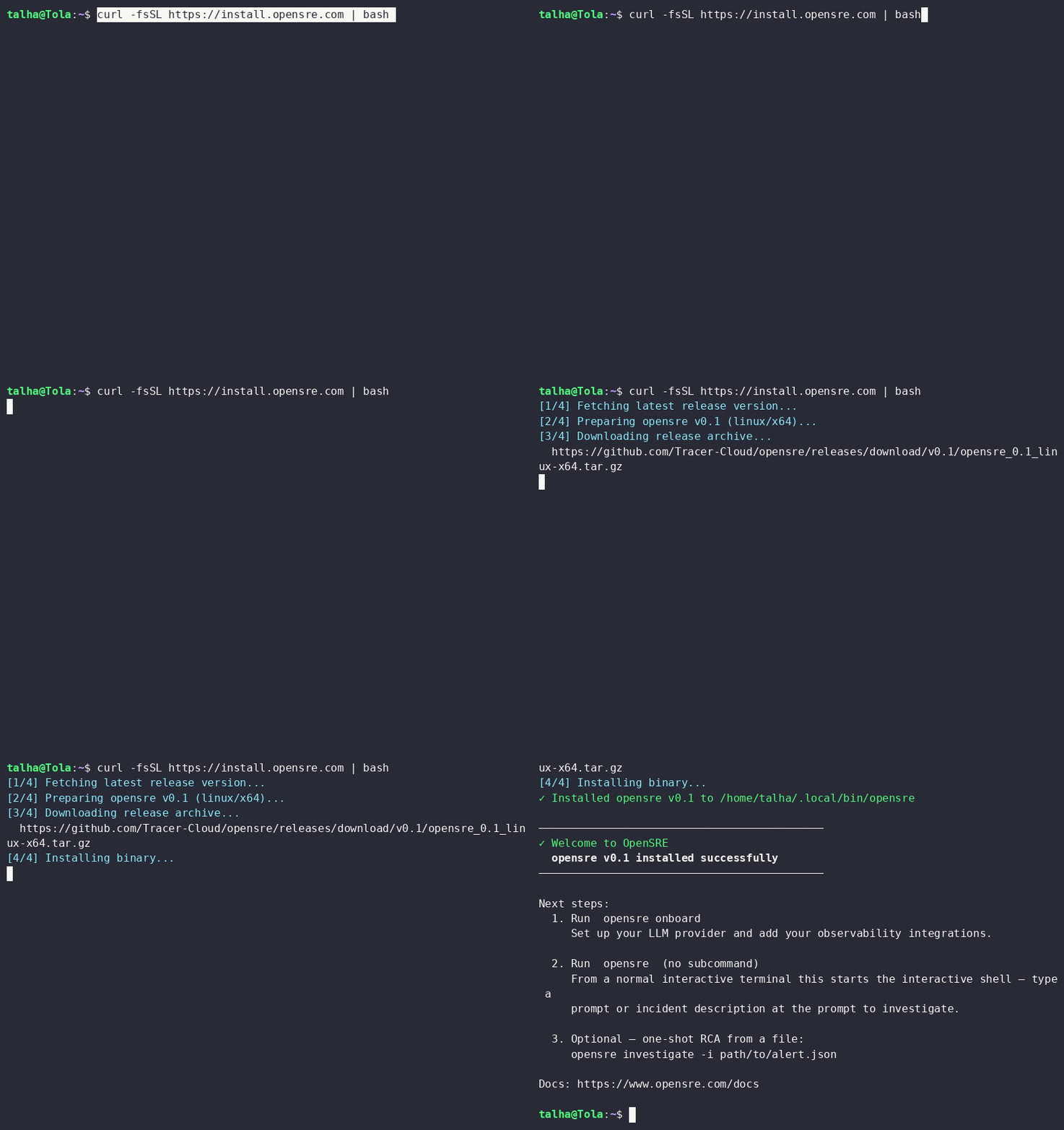
main.
2
Onboard
Run the onboarding wizard to configure your LLM provider and connect your integrations (Grafana, Datadog, Honeycomb, Coralogix, Slack, AWS, GitHub MCP, Sentry):After you pick a provider and a model, the wizard sends one tiny request to that provider with the credential you just entered — so a typo, an expired key, or an Ollama model you have not pulled yet is caught here, not on your first investigation.
- macOS / Linux
- Windows

3
Run an investigation
Choose either path — both use the same local Direct investigation — one-shot run from your shell with an alert file:For file-based runs, OpenSRE fetches alert context, reasons across connected systems, and generates a structured root-cause report.
opensre binary:Interactive prompt shell — start OpenSRE with no arguments (TTY) to type incidents in plain language and use slash commands (/help, /status, /effort, /exit, …):- macOS / Linux
- Windows

4
Keep up to date
Uninstall
To remove opensre and all its local data from your machine:--yes to skip the confirmation prompt:
Troubleshooting
- Docker is not running: Start Docker Desktop, OrbStack, or Colima before running setup.
makeis missing: Install it via your package manager (brew install makeon macOS,choco install makeon Windows).- No local LLM provider is configured: Run
opensre onboardto select and configure your LLM credentials. Leave the key blank to finish onboarding and add it later withopensre auth login <provider>. - Onboarding says your key could not be verified, but you know it is valid: The check needs to reach the provider, so a firewall, a proxy, or being offline will fail it. Choose Save anyway without validating to keep the key and move on — you can rerun
opensre onboardto re-enter it later. - Onboarding could not save your key: Follow the setup steps it prints for
~/.opensre/credentials.json, then choose Retry saving to the local credentials file. To get going right now, choose Continue without saving (this session only) — the key works for this run and you re-enter it next time.